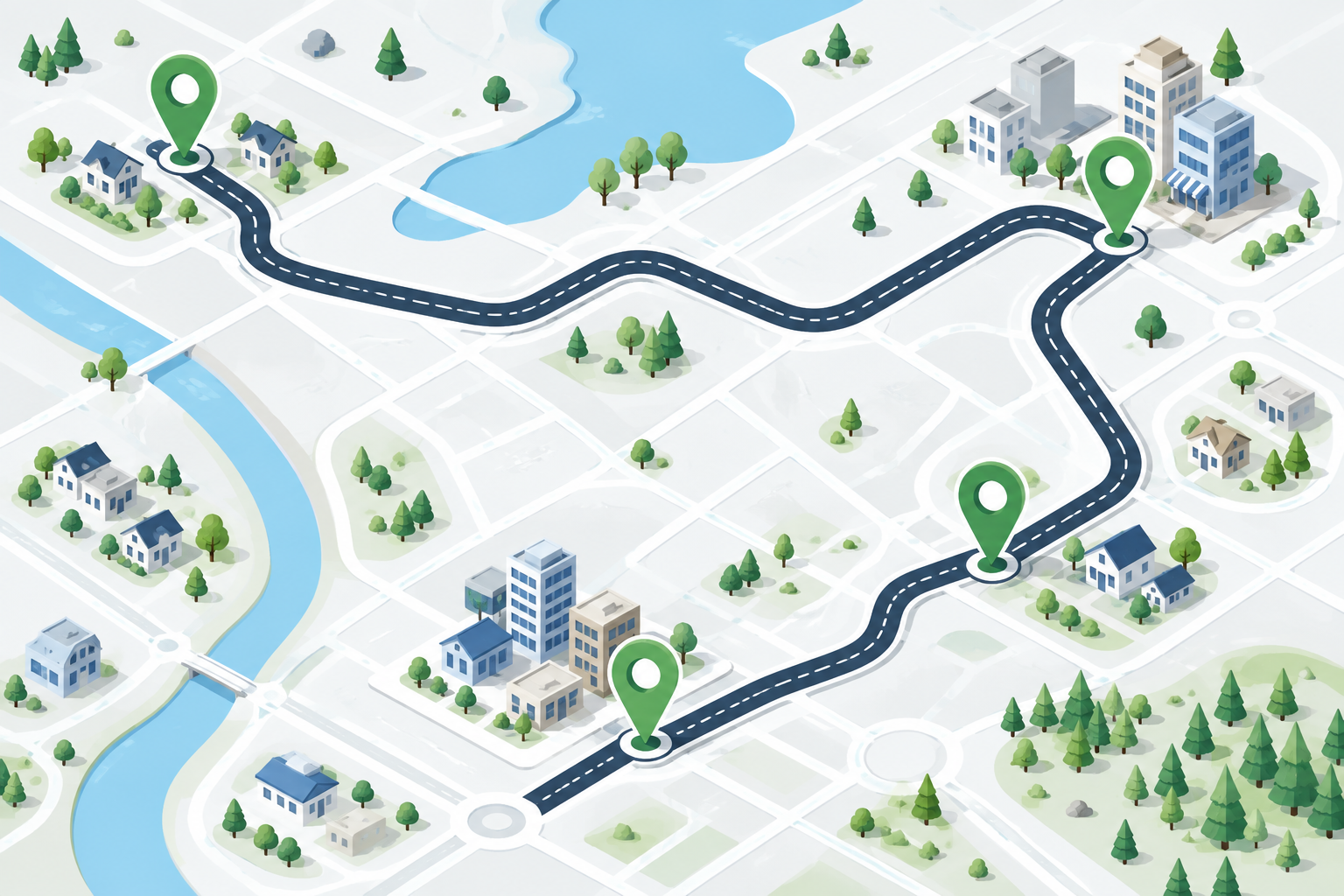

Use Route Planner when order changes the trip
A basic directions page answers a point-to-point question. Route Planner answers a sequencing question: how should several places fit together? That distinction matters when a route includes customer visits, errands in different neighborhoods, or planned attractions along a longer drive. Entering the stops together gives you a chance to see the full pattern instead of estimating each leg separately. It also makes hidden backtracking easier to notice. A useful multi-stop plan is not just a list of addresses; it is a schedule that respects the real constraints of the day.
Enter each stop as a complete place
Use a full street address, city, state, and ZIP code when possible. Similar business names and repeated chain locations can produce a route that looks reasonable but points to the wrong property. Give special care to warehouses, apartment communities, campuses, parks, and large shopping areas, where the road address may not identify a loading dock or visitor entrance. After each place is recognized, read the displayed name and location before moving to the next stop. Accurate inputs are the foundation of any optimization result.
Understand stop reordering and round trips
The current planner presents a setting that lets the tool reorder stops, as well as a round-trip option. Reordering can reduce backtracking when the schedule is flexible, but it may not understand a customer promise, a lunch reservation, a delivery deadline, or the need to collect something before dropping it off. Keep fixed appointments in the order they require and allow optimization only where it is appropriate. A round trip is useful when you need to return to the origin, but it should be checked for the actual final destination and the time required to complete the loop.
Choose shortest time or shortest distance deliberately
Shortest time and shortest distance describe different priorities. The time choice may use a longer road when it reduces estimated travel time, while the distance choice may save miles but take longer or include more local streets. For a work route, fuel and vehicle wear may matter as much as the clock. For a road trip, a scenic or simpler route may be preferable to a strict optimization. Compare the result with your vehicle, road conditions, toll preferences, and comfort before accepting the planner’s ordering.
Turn an optimized line into a realistic day
The route calculation covers movement between locations; it does not create time for parking, checking in, loading, meals, rest, customer conversations, or finding an entrance. Add those activities when you estimate the day. A schedule that looks efficient on the map can still fail if every stop requires a difficult downtown approach or if the first appointment opens later than the route assumes. Confirm business hours and reservations independently, especially on weekends and holidays. Treat the planner as the road framework around which your real schedule is built.
Review the completed route before starting
Once the stops and settings look right, scan the whole route and the individual legs. Notice any long detour, toll, bridge, border crossing, or location that appears out of sequence. Keep the address and stop order available in a format the driver can use safely. If traffic, weather, or a new appointment changes the day, recalculate while parked rather than trying to edit the plan in motion. A careful review is what turns the planner’s optimization into an itinerary you can actually follow.
Separate route efficiency from service quality
An optimized route can still be a poor workday plan if a stop has no loading area, a customer cannot receive a visit at the suggested time, or a fuel break is too far from the next leg. Treat the calculated order as one scenario and test it against the service each stop requires. Ask whether a driver can park legally, find the entrance, carry supplies, and leave on time. If a route saves miles but creates repeated difficult arrivals, a slightly longer sequence may be the more efficient choice once the full day is measured.
Common questions
MapQuest Route Planner FAQ
How many stops can MapQuest Route Planner handle?
The current MapQuest Route Planner page advertises up to 26 locations. Availability and limits can change, so confirm the live planner when building a large route.
Can MapQuest Route Planner reorder my stops?
The current planner includes a setting to let it reorder stops. Use that only when your schedule is flexible, then review the order against opening times, appointments, and required pickups.
What is the difference between shortest time and shortest distance?
Shortest time prioritizes the estimated duration, while shortest distance prioritizes fewer miles. Either result can be less suitable if it adds tolls, difficult turns, or roads that do not fit your trip.
Further reading
Official references for this guide
This independent article was written from general route-planning practice and the current references below. Product controls, coverage, and data can change, so confirm details on the live service before a time-sensitive trip.
MapQuest Route Planner is most effective when it organizes a flexible sequence, while you supply the human details: deadlines, opening hours, parking, rest, and the route that feels sensible to drive.