Build the route before you print
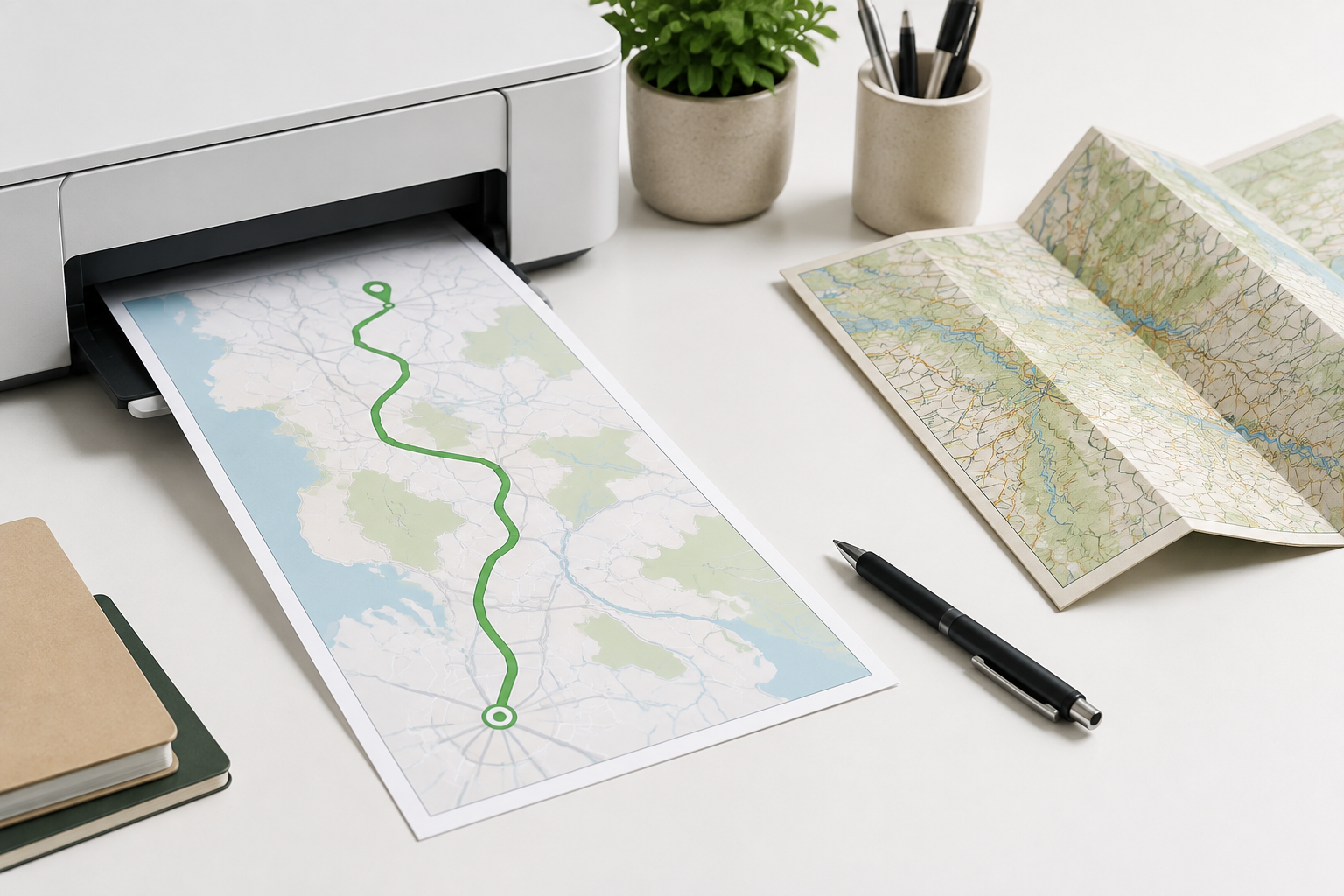
Start on the current MapQuest directions page and enter a complete origin and destination. Confirm the recognized place, choose driving or another appropriate mode, and compare the route choices before opening the browser’s print controls. If you print too early, a broad place name or an accidental route setting can turn the paper into a polished version of the wrong trip. For a large property, include the building, entrance, or parking address that matches the reason you are traveling.
Choose a view that remains readable on paper
A full route overview shows the shape of the journey, while a turn list explains the sequence. Long trips may need both, with the overview on one page and the critical local approach on another. Check the print preview for clipped map edges, tiny labels, blank advertisement space, and a missing destination name. Increase the browser scale only if the route remains legible, and use landscape orientation when a wide map needs it. A simple, readable page is more useful than a detailed image no one can decipher.
Include the details a paper map cannot infer
Write the date, destination address, major stops, and a phone number or reservation detail that you may need after arrival. Note a fuel or rest location on longer drives and mark the final entrance for a campus, venue, or park. If the route depends on a toll road, ferry, seasonal pass, or timed entry, record that separately. Paper directions are strongest when they preserve the human context around the line on the map, not when they try to show every possible side street.
Save a PDF when sharing or reprinting helps
The browser print dialog may let you save the route as a PDF instead of sending it directly to a printer. A PDF can be useful for sharing with a passenger or reprinting a lost page, but it has the same freshness limit as paper. Remove private information before forwarding a route that begins at home. Name the file with the destination and date so you do not confuse it with an older plan. If a current MapQuest page exposes its own print action, compare that output with the browser preview and keep the clearer version.
Print close to departure and verify current conditions
A printed route is a snapshot. Road construction, weather, traffic, and access rules can change after it is created, so check official notices near departure and compare them with the paper. If a sign or local authority directs you differently, follow the current instruction and stop safely before changing the plan. For an unfamiliar or remote drive, carry the exact address and a basic regional map as additional context. A paper backup is valuable precisely because it gives you another reference when the digital one is delayed.
Store the map where it can be used safely
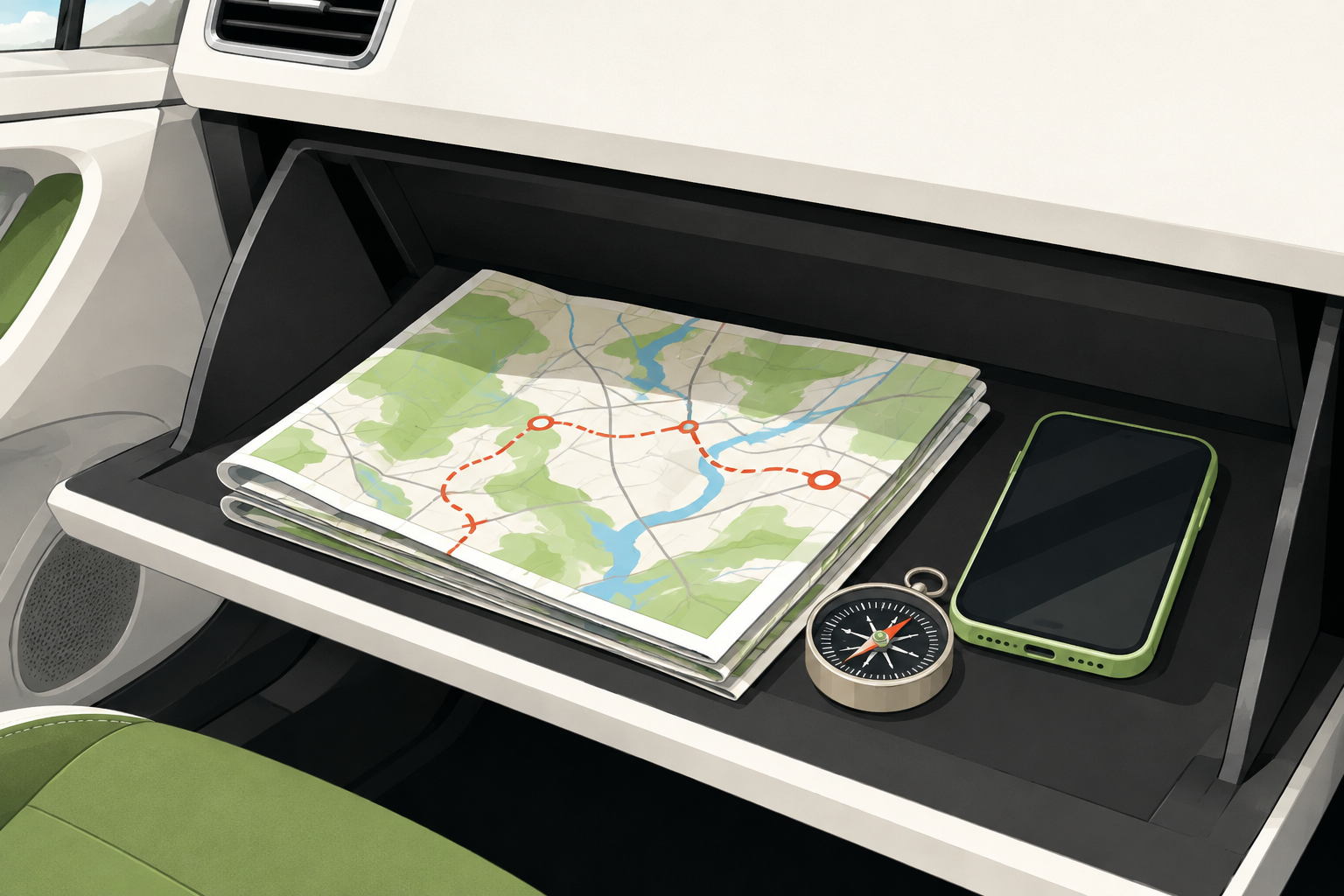
Keep the printed pages in an accessible folder or envelope rather than loose on the dashboard. The driver should read them while parked or let a passenger manage them. Fold the page so the next section is easy to find, and highlight the final approach before leaving. Do not attempt to unfold or annotate a map while moving. At the end of the journey, recycle outdated directions or mark them clearly so a future trip does not accidentally use an old route.
Make the printed pages easy to scan
Use a clear heading for the destination and keep the pages in travel order. If the route is long, separate the overview from the detailed final approach rather than shrinking everything until the labels disappear. Mark the next stop before you leave and add a note when a turn depends on a bridge, exit, or unusual entrance. A passenger should be able to find the relevant page in a few seconds. Readability, organization, and current information matter more than printing every visible map layer.
Common questions
MapQuest Printable Map FAQ
How do I make a MapQuest printable map?
Create and review the route on the current MapQuest site, choose a readable map or turn-list view, open the browser print preview, and print or save a PDF after checking the page layout.
Can a printable MapQuest map show live traffic?
No. Printed pages are snapshots. Check current traffic, weather, closures, and local instructions near departure and be ready to follow newer information.
Should I print the map or the turn list?
For a short trip, a turn list may be enough. For a longer journey, a readable overview plus the final approach gives better context. Use the print preview to keep labels and turns legible.
Further reading
Official references for this guide
This independent article was written from general route-planning practice and the current references below. Product controls, coverage, and data can change, so confirm details on the live service before a time-sensitive trip.
A MapQuest Printable Map is a practical backup when it is current, readable, and specific about the destination. Print after reviewing the route, then keep it away from the driver’s hands while the vehicle moves.