What are MapQuest Driving Directions?
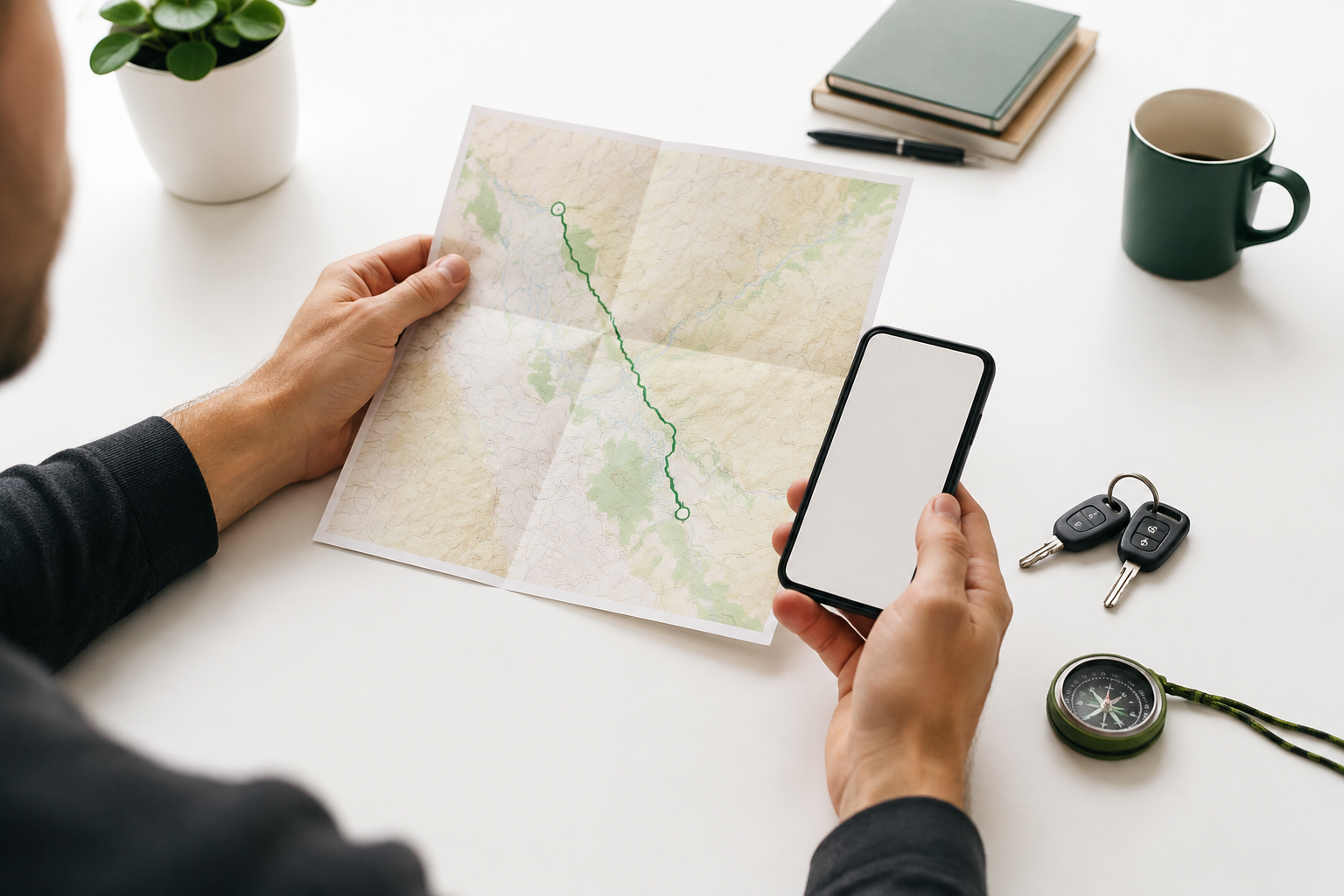
MapQuest Driving Directions are an online route-planning tool for working out how to travel from one place to another by car. You provide an origin and a destination, and the service presents a route you can study on a map alongside written instructions. Depending on the trip and the information available at the time, you may also see distance, estimated travel time, alternate routes, traffic context, or options that help you shape the journey.
That distinction matters. A route that looks shortest on screen may not be the easiest route for a new driver, a large vehicle, a late-night arrival, or a day with heavy traffic. MapQuest is most helpful when you use the first result as a starting point, then check whether it makes sense for the people, timing, and conditions involved.
Quick answer
Enter a precise starting point and destination, review the available route options, check distance and estimated time, add stops when needed, and preview the turn sequence before departing. Build in extra time for traffic, weather, construction, and the reality of finding parking or an entrance.
How to get MapQuest Driving Directions
The basic process is simple, but a few careful inputs can prevent avoidable wrong turns. Use this sequence whenever you plan a new route:
- Start with a specific origin. Use your current location only when it is accurate and you are comfortable sharing it. Otherwise, enter a street address, intersection, landmark, or recognizable place name. If you are leaving from a large property, include the entrance or building that makes sense for the driver.
- Enter the destination carefully. Check the city, state, and postal details when a place name could refer to more than one location. Businesses, campuses, hospitals, airports, and shopping centers can have multiple entrances, so confirm the result on the map before accepting it.
- Compare the route choices. Look beyond the first highlighted line. Compare the distance, expected duration, major roads, and the number of turns. A slightly longer route can be a better choice if it is easier to understand or less sensitive to a busy junction.
- Adjust the trip to fit your plan. For a multi-stop day, add each stop in the order you expect to visit it. Review any available route preferences, such as avoiding toll roads or highways, but remember that a preference changes the calculation; it does not guarantee the fastest or most comfortable trip.
- Preview before you leave. Read the first few instructions, identify the major transitions, and note where you will need to make a decision. Save or share the plan only after you have checked the route, the arrival point, and the time you actually have available.
How to read a route before you leave
A map line is only one part of MapQuest Driving Directions. Before you rely on it, take a moment to translate the screen into a real-world plan. Confirm that the origin pin is on the correct side of the road, that the destination is near the entrance you need, and that the route does not depend on a private road, restricted access point, or turn that would be difficult at your expected arrival time.
Distance
Useful for fuel, charging, and comparing routes, but not a complete measure of convenience.
Estimated time
A planning estimate. Add a buffer for stops, parking, weather, and changing road conditions.
Turn sequence
The detail that helps you spot complicated interchanges, late turns, and unfamiliar approaches.
If two routes are close in time, choose the one you can explain to yourself. Knowing the names of the main roads and the approximate point where you change direction gives you a useful mental backup if the screen becomes hard to read or the signal drops.
How to plan a better trip with MapQuest
Good route planning is less about finding one perfect line and more about reducing surprises. For a short local drive, verify the address and leave enough time to park. For a longer journey, break the trip into reasonable sections and decide where you can stop for fuel, food, rest, or a change of driver. A route with several hours of uninterrupted driving should include a human plan for breaks, not just a time estimate.
Multi-stop planning deserves extra attention. Add stops in a logical order, then look at the full loop rather than judging each leg separately. If the order is flexible, compare the total distance and backtracking. Also check whether a stop is on the correct side of a divided road or inside a large complex. These small details can save more time than shaving a few miles from the route.
Route preferences can also change the character of a trip. Avoiding tolls may reduce direct costs but add time. Avoiding highways may make a drive feel more relaxed while adding many turns. Choose the preference that matches the purpose of the trip, then review the resulting instructions instead of assuming the setting made the decision for you.
Use driving directions safely on the road
Plan while parked, set up hands-free guidance before moving, and never handle a phone to correct a route in traffic. Online directions are helpful, but posted signs, temporary detours, emergency instructions, and local access rules take priority. If a direction looks unsafe, illegal, or physically impossible, continue to a safe place and reassess rather than forcing the maneuver.
Conditions can change after a route is calculated. Construction, incidents, weather, event traffic, and road closures may make an earlier estimate less useful. Check the route close to departure, keep your attention on the road, and let a passenger handle changes whenever possible.
When another planning option may be better
MapQuest Driving Directions can cover everyday planning needs, but no single tool is best for every situation. If you are walking, cycling, using public transportation, driving a vehicle with unusual height or weight, or navigating a location with access restrictions, look for route information designed for that mode or vehicle. For a remote trip, download or print the key details when possible and prepare for gaps in mobile coverage.
The practical takeaway is straightforward: use MapQuest to understand the route, use your judgment to choose it, and use real-world signs and conditions to stay safe. That workflow gives you the benefit of organized directions without placing more trust in a screen than the journey deserves.
Common questions
MapQuest Driving Directions FAQ
What are MapQuest Driving Directions used for?
MapQuest Driving Directions can help you plan a trip by entering a starting point and destination, reviewing route choices, comparing distance and estimated travel time, and checking the turn sequence before you leave.
Can I add stops to a MapQuest route?
Yes. When your route requires more than a simple point-to-point trip, add stops in the order you expect to visit them, then review the complete route for sensible sequencing and enough time between stops.
Are online driving directions always accurate?
No route planner can promise perfect or fully current conditions. Confirm the address, watch for traffic or closure notices, follow posted signs, and use hands-free guidance only when it is safe and legal to do so.
MapQuest Driving Directions are most valuable when they help you arrive prepared. Enter precise places, compare the route choices, plan the stops that your day requires, and leave room for conditions the map cannot predict. A few minutes of review can turn a line on a screen into a trip you understand before you begin.