Google Maps Satellite View
Google Maps Satellite View provides breathtaking aerial imagery of virtually every corner of the planet, allowing users to see the world from above with remarkable clarity and detail. By combining high-resolution satellite photographs with aerial photography, Google Maps Satellite View offers a bird's-eye perspective that transforms how we explore geography, plan projects, and understand our surroundings. From dense urban landscapes to remote mountain ranges, satellite view makes the entire Earth accessible from your screen.
This powerful feature goes beyond standard map views by showing actual photographic imagery of buildings, roads, vegetation, water bodies, and terrain features, making it an invaluable tool for a wide range of professional and personal applications.
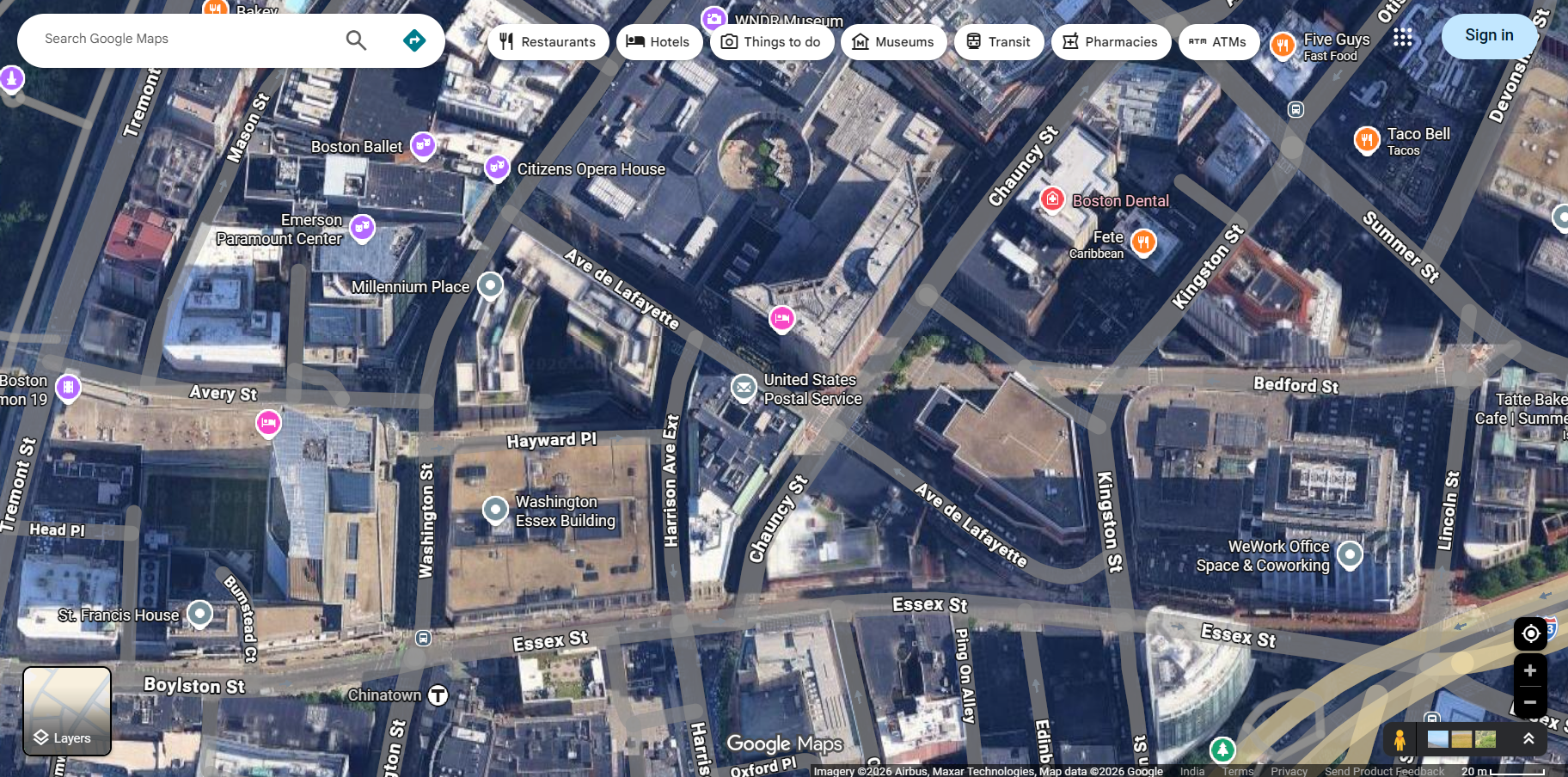
How to Access Google Maps Satellite View
Switching to satellite view on Google Maps is quick and easy on any device:
On Desktop
- Open Google Maps in your web browser at maps.google.com.
- Click the "Layers" button at the bottom-left corner of the map (it appears as a square with stacked layers).
- Select "Satellite" from the map type options to switch from the default map view to satellite imagery.
- Toggle "Labels" on or off to show or hide street names, place labels, and points of interest overlaid on the satellite imagery.
- Zoom in or out using the scroll wheel or zoom controls to explore different levels of detail.
On Mobile
- Open the Google Maps app on your smartphone or tablet.
- Tap the Layers icon (diamond-shaped icon) at the top right of the map.
- Select "Satellite" to switch to aerial imagery.
- Pinch to zoom for more detailed views of any area.
Features of Google Maps Satellite View
The satellite view in Google Maps offers several powerful features that enhance the viewing experience:
- High-Resolution Imagery — Google uses satellite photos and aerial photography with resolutions as fine as 15 centimeters per pixel in some areas, allowing you to see individual cars, trees, and even lawn furniture in the highest-zoom levels.
- Global Coverage — Satellite imagery covers the entire planet, from bustling city centers to the most remote islands, deserts, and polar regions.
- 3D Buildings and Terrain — In many areas, satellite view includes 3D building models and terrain elevation data, giving you a realistic three-dimensional perspective of landscapes and cityscapes.
- Regular Updates — Google continuously refreshes its satellite imagery to ensure accuracy. Major metropolitan areas are updated more frequently, while rural areas receive periodic updates.
- Terrain View — A complementary feature that overlays elevation contours and shading on the map, making it easy to visualize hills, valleys, mountains, and other terrain features.
- Seamless Transitions — Smooth zooming and panning allow you to transition effortlessly from a global view down to street-level detail without any jarring changes.
Practical Applications of Satellite View
Google Maps Satellite View is used across many industries and for countless personal applications:
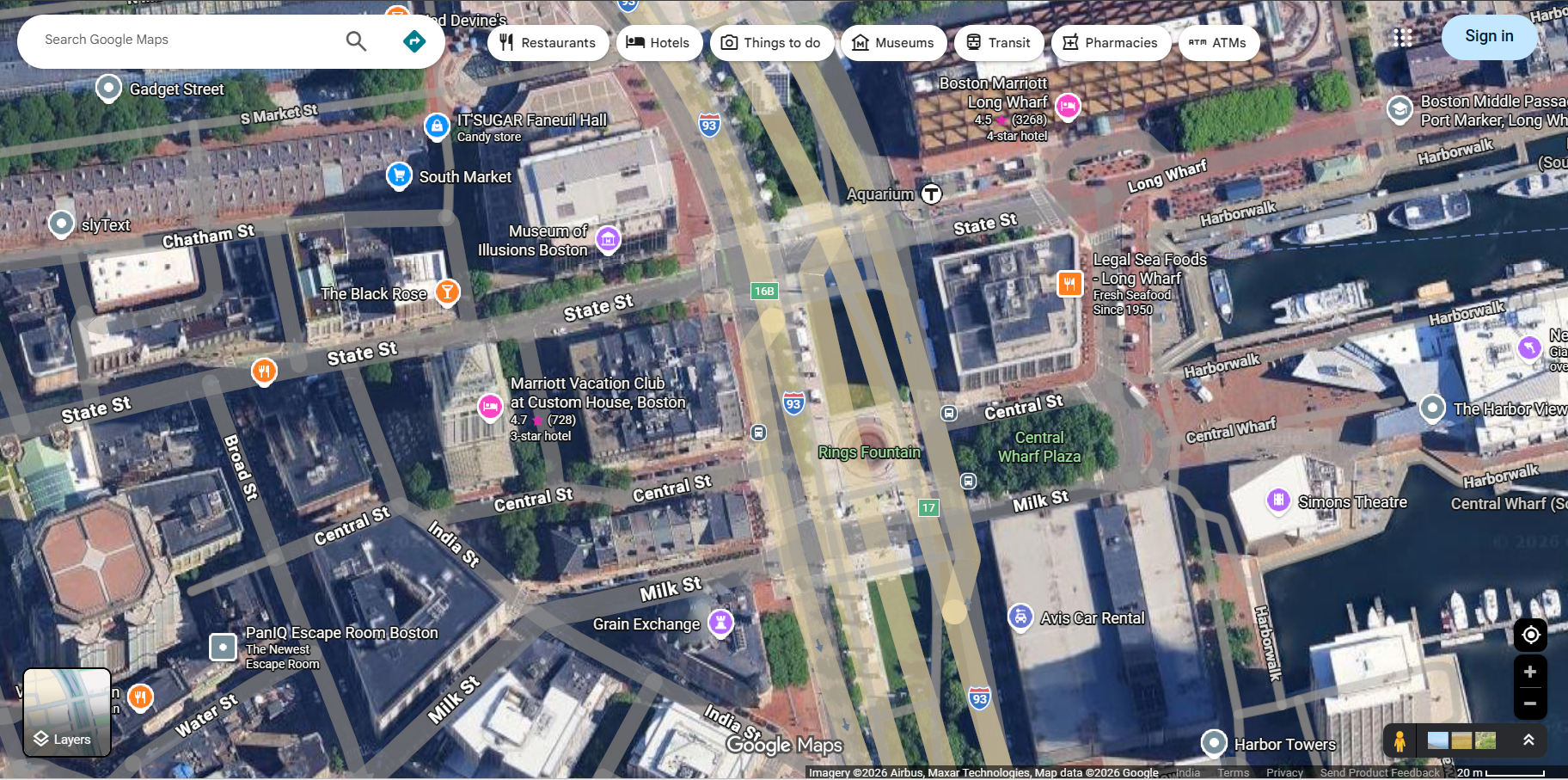
- Real Estate and Property Assessment — Evaluate properties, check lot sizes, assess surrounding areas, and view roof conditions without physically visiting the location.
- Urban Planning and Development — City planners and architects use satellite views to study land use, transportation networks, green spaces, and development patterns.
- Agriculture and Farming — Farmers use satellite imagery to monitor crop health, plan irrigation systems, and assess land parcels for cultivation.
- Environmental Monitoring — Researchers track deforestation, glacier retreat, urban sprawl, and water level changes using satellite imagery over time.
- Travel and Exploration — Travelers use satellite view to preview destinations, scout hiking trails, identify beaches, and explore the geography of places they plan to visit.
- Education — Students and educators use satellite view for geography lessons, environmental studies, and virtual exploration of Earth's diverse landscapes.
- Construction and Engineering — Engineers survey terrain, plan road layouts, and assess site conditions using detailed aerial imagery before breaking ground.
Satellite View vs. Standard Map View
While the standard Google Maps view uses simplified graphics with color-coded roads and labeled locations, satellite view shows real photographic imagery from above. Each view has its advantages:
- Standard Map View — Best for navigation, reading street names, finding businesses, and getting driving directions. Clean and easy to read with color-coded roads and clear labels.
- Satellite View — Best for seeing what a place actually looks like, evaluating terrain, checking property boundaries, and exploring natural features. Provides real-world visual context that standard maps cannot.
- Hybrid View — Combines satellite imagery with road labels and place names overlaid on top, giving you the best of both worlds.
Tips for Using Google Maps Satellite View
- Zoom for Detail — Satellite imagery becomes significantly more detailed as you zoom in. Don't stop at a city-wide view — zoom all the way in to see individual structures and features.
- Enable 3D Mode — On desktop, hold Ctrl and drag to tilt the view for a 3D perspective. On mobile, use two fingers to tilt the map.
- Compare Over Time — Use Google Earth's historical imagery feature to compare satellite photos taken at different dates and observe how locations have changed.
- Download for Offline Use — While satellite view typically requires an internet connection, you can download areas in the Google Maps app for limited offline satellite viewing.
Frequently Asked Questions
- Is Google Maps Satellite View free? — Yes, satellite view is completely free and available to all Google Maps users on desktop and mobile.
- How current are the satellite images? — Satellite imagery age varies by location. Urban areas are typically updated every one to three years, while some rural areas may have imagery that is several years old.
- Can I see my house on Google Maps Satellite View? — Yes, you can search for your home address and zoom in to see your property from above. The level of detail depends on your location.
- Why are some areas blurred in satellite view? — Some locations are intentionally blurred or obscured at the request of governments for security or privacy reasons.