Google Maps Route Planner
Google Maps Route Planner is one of the most powerful and widely used tools for planning driving routes, road trips, and daily commutes. With the ability to calculate optimal routes between multiple destinations, provide real-time traffic estimates, and offer alternative paths, Google Maps Route Planner helps millions of drivers save time, fuel, and frustration every day. Whether you are mapping out a cross-country adventure with multiple stops or simply finding the fastest way to work, Google Maps route planning features make the process simple and efficient.
The route planner goes beyond basic point-to-point directions by offering sophisticated trip optimization tools that account for traffic patterns, road conditions, distance, and travel time — all updated in real time.
How to Plan a Route on Google Maps
Planning a route with Google Maps is intuitive and works on both desktop and mobile platforms:
Basic Route Planning
- Open Google Maps and click the Directions button or tap the directions icon in the mobile app.
- Enter your starting point — type an address, landmark, or use "Your location" for GPS-based starting point detection.
- Enter your destination — the endpoint of your journey.
- Review the suggested routes — Google Maps typically provides two to three route options with estimated travel times and distances.
- Select your preferred route by clicking on the alternative route lines on the map or the route options in the directions panel.
Multi-Stop Route Planning
- Enter your start and end points as described above.
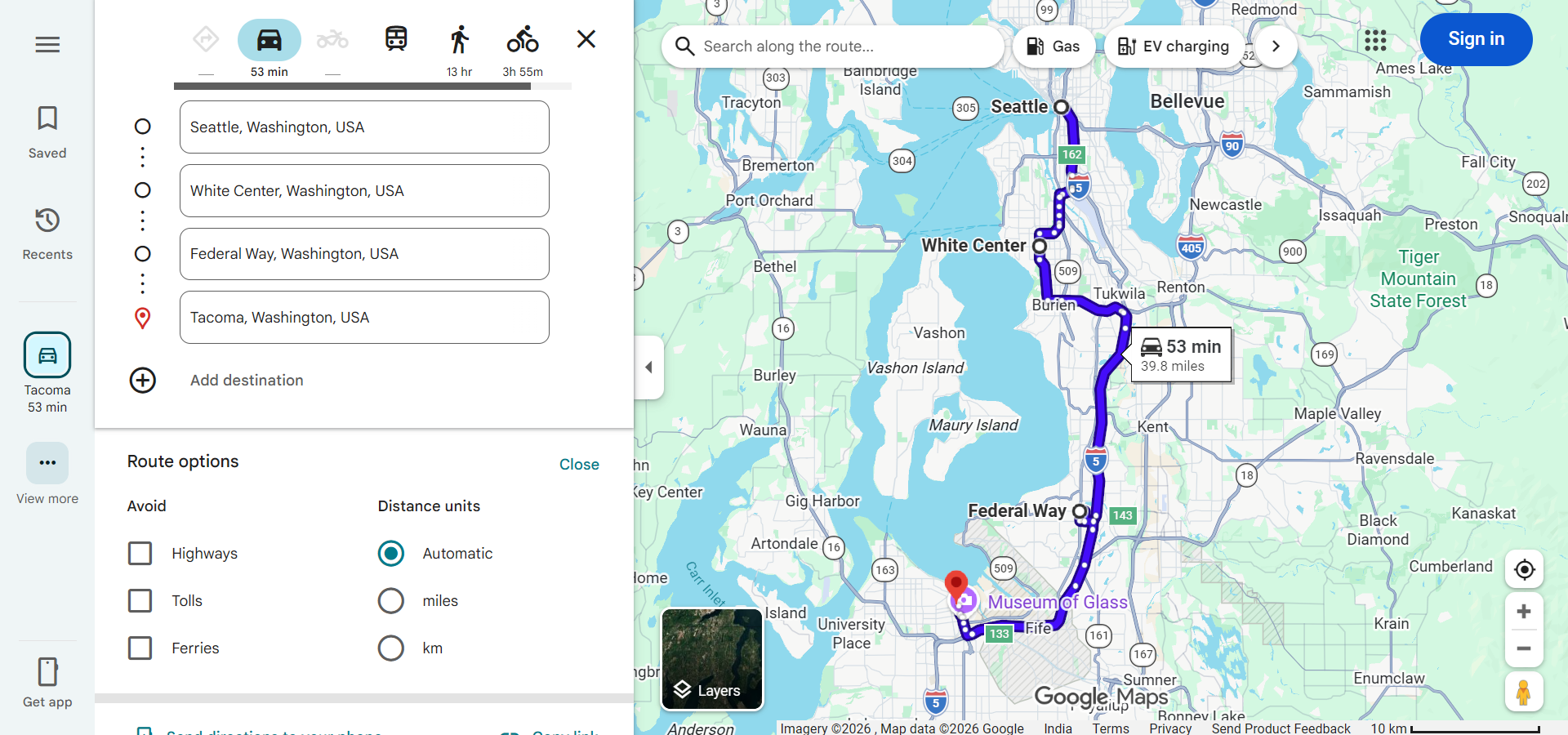
- Click "Add stop" (or tap the "+" icon on mobile) to add intermediate destinations.
- Add up to 9 additional stops along your route.
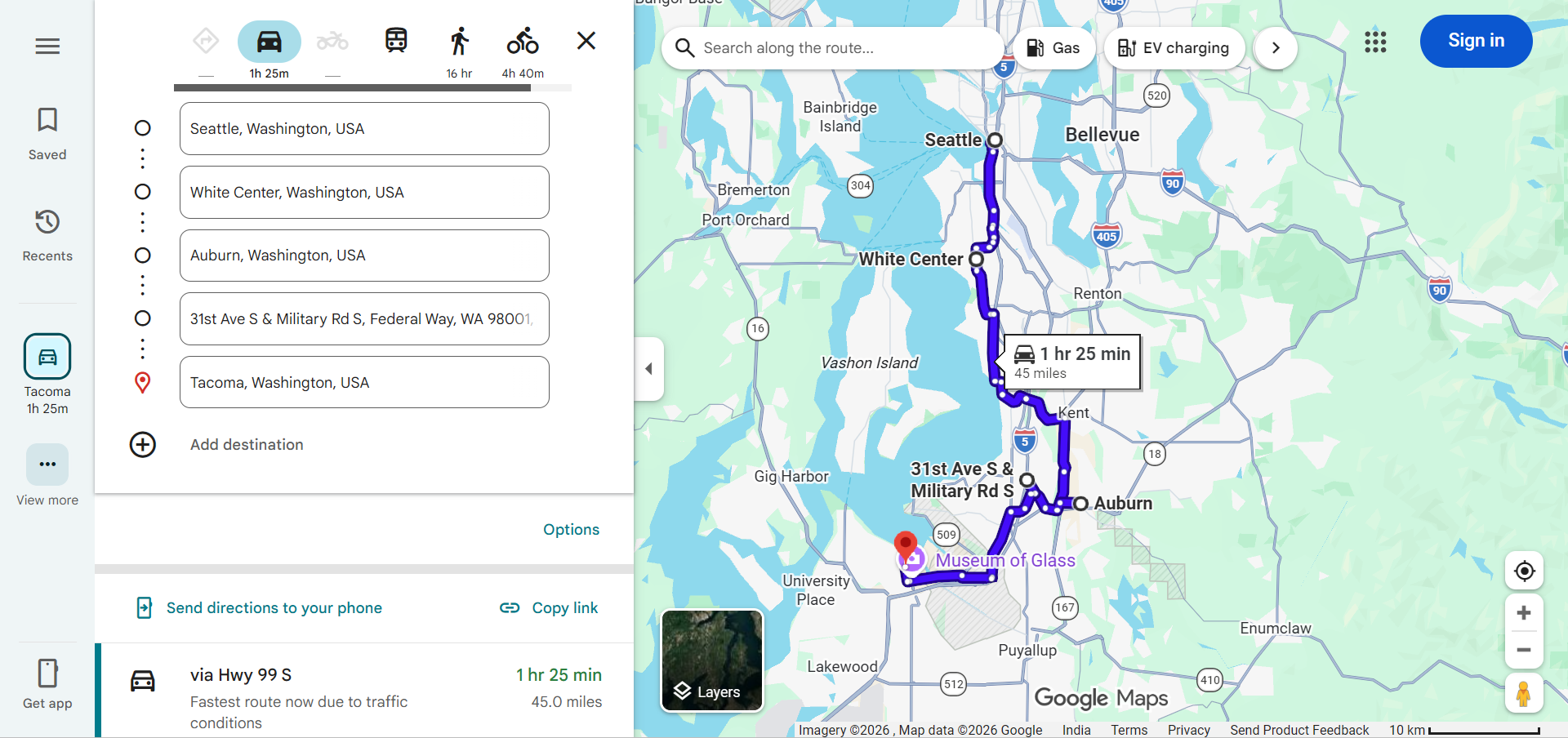
- Drag and reorder stops by clicking and dragging the three-line handle next to each stop to optimize the sequence of your journey.
- Review the complete route with total distance and estimated travel time across all stops.
Advanced Route Planning Features
The Google Maps Route Planner includes several advanced features that make trip planning more flexible and efficient:
- Depart At / Arrive By — On desktop, you can set a specific departure time or desired arrival time. Google Maps will estimate your travel time based on historical traffic patterns for that time of day, helping you plan future trips with greater accuracy.
- Route Options — Customize your route by toggling options to avoid tolls, avoid highways, or avoid ferries. These preferences allow you to tailor directions to your specific needs and budget.
- Traffic-Aware Routing — Google Maps uses real-time traffic data to suggest the fastest route at any given moment. If conditions change during your drive, the app can automatically reroute you to avoid new congestion.
- Send to Phone — Plan your route on desktop and seamlessly send the directions to your smartphone for mobile navigation.
- Share Route — Share your planned route with others via link, email, or messaging apps so travel companions can follow the same path.
- Print Directions — For those who prefer paper, Google Maps allows you to print step-by-step directions with a map overview.
Tips for Effective Route Planning
- Plan During Off-Peak Hours — Use the "Depart At" feature to compare travel times at different hours, then choose the departure time with the least traffic.
- Explore Alternative Routes — Don't always choose the first suggested route. Sometimes a slightly longer route by distance can be significantly faster due to less traffic or better road conditions.
- Save Your Routes — Bookmark frequently traveled routes for quick access. You can also create custom lists of favorite destinations for faster route planning.
- Consider Fuel Stops — For long road trips, plan fuel stops by adding gas stations as waypoints along your route, especially in areas with limited service stations.
- Check Weather Conditions — While Google Maps doesn't display weather directly, checking the forecast alongside your route plan helps you prepare for potential delays due to weather.
- Download Offline Maps — Before a long trip, download offline maps for areas where cellular coverage may be limited to ensure uninterrupted navigation.
Route Planner for Road Trips
The Google Maps Route Planner is particularly valuable for road trip planning:
- Multi-Day Itineraries — Plan each day's driving separately to ensure manageable daily distances and adequate time at each destination.
- Points of Interest — Search for attractions, restaurants, hotels, and rest stops along your route to enrich your road trip experience.
- Total Trip Overview — See the complete distance and estimated driving time for your entire multi-stop journey at a glance.
- Real-Time Adjustments — During your road trip, easily modify your route by adding spontaneous stops or rearranging planned destinations.
Frequently Asked Questions
- How many stops can I add in Google Maps Route Planner? — You can add up to 9 intermediate stops (plus your starting point and final destination) for a total of 11 locations on a single route.
- Does Google Maps optimize the order of multiple stops? — Google Maps does not automatically optimize stop order. You need to manually drag and reorder stops for the most efficient route sequence.
- Can I save a planned route for later? — While Google Maps doesn't have a dedicated route-saving feature, you can share the route link with yourself via email or save the URL for later access.
- Is Google Maps Route Planner free? — Yes, all route planning features on Google Maps are completely free to use.