Google Maps Trip Planner
Google Maps Trip Planner is the ultimate travel companion that helps you organize every aspect of your journey from start to finish. By combining route planning, place discovery, saved lists, and real-time navigation, Google Maps Trip Planner enables travelers to create detailed itineraries, find the best hotels and restaurants, discover local attractions, and navigate unfamiliar destinations with confidence. Whether you are planning a weekend road trip or a multi-week international adventure, Google Maps provides all the tools you need to plan the perfect trip.
The trip planner capabilities of Google Maps go far beyond simple directions — they help you research destinations, organize your stops, estimate travel times, and discover hidden gems along the way.
How to Plan a Trip with Google Maps
Step 1: Research Your Destinations
- Search for your destination on Google Maps to see an overview of the area, including photos, reviews, and popular places.
- Explore the area using the "Nearby" feature to find hotels, restaurants, attractions, gas stations, and other points of interest.
- Read reviews and ratings for places you are considering to help decide which ones to include in your itinerary.
- Save places to lists by tapping the "Save" button and adding them to custom lists like "Want to Go," "Must Visit," or trip-specific lists.
Step 2: Create Your Itinerary
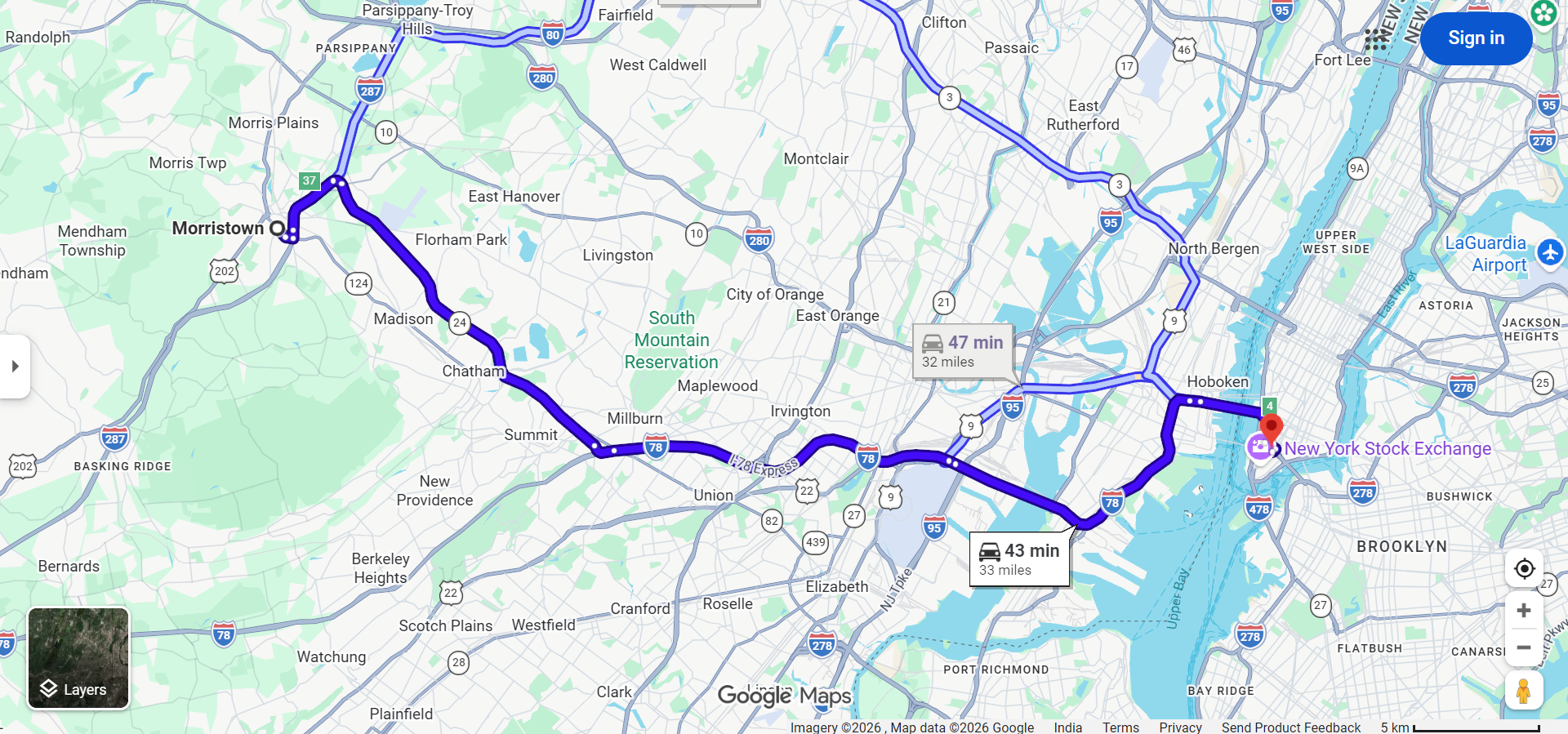
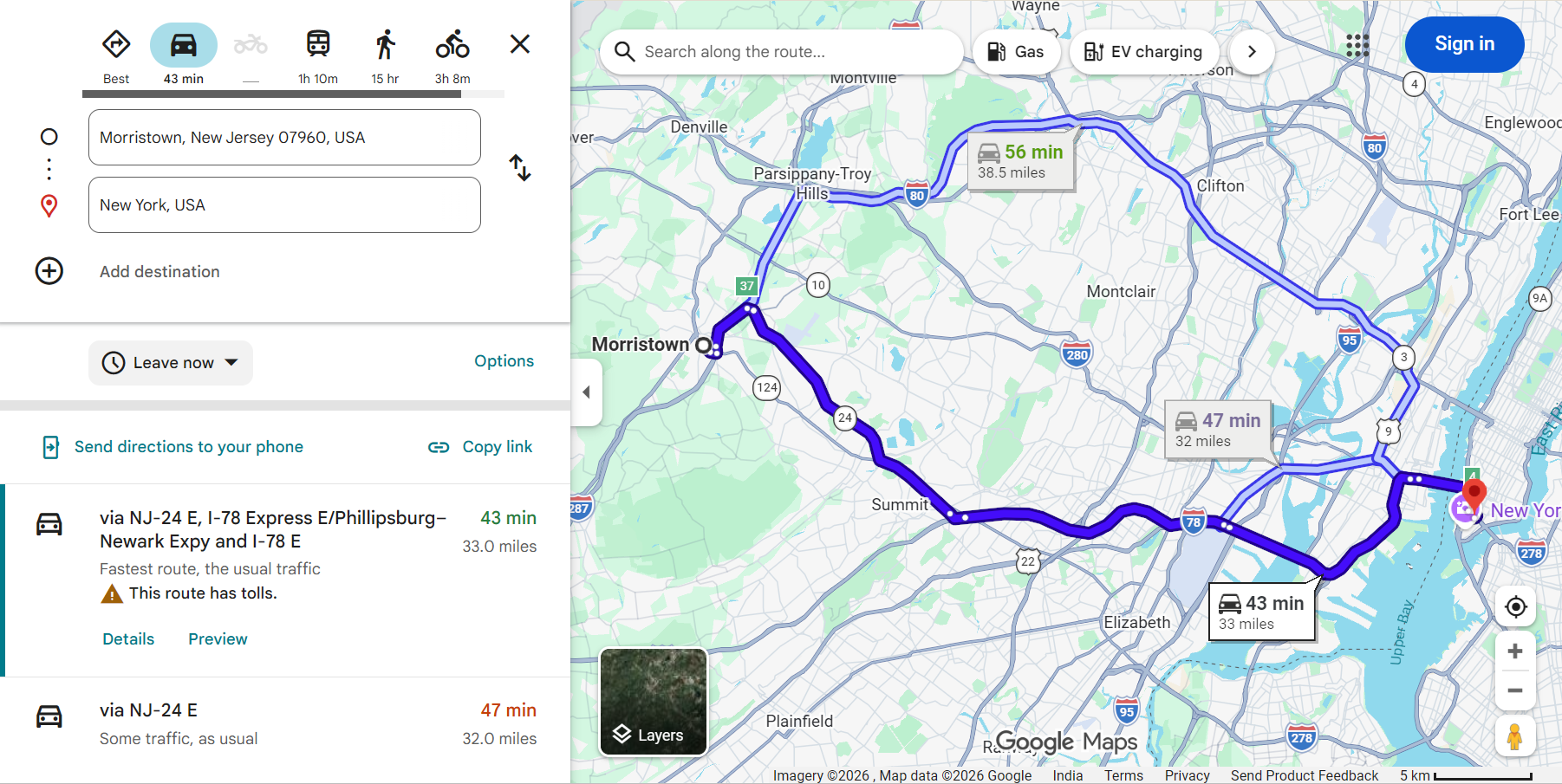
- Open Google Maps directions and enter your first stop as the starting point.
- Add your second destination as the endpoint.
- Add intermediate stops by clicking "Add stop" for each place you want to visit along the way.
- Reorder stops by dragging them to create the most logical and efficient sequence.
- Review total distance and time for your complete multi-stop itinerary.
Step 3: Optimize and Finalize
- Check travel times between each stop to ensure you have enough time for sightseeing, meals, and rest.
- Plan daily segments — break a long trip into manageable daily drives of 4-6 hours to avoid fatigue.
- Identify fuel, food, and rest stops along each segment of your route.
- Download offline maps for areas where you may not have cellular coverage.
Google Maps Trip Planning Features
- Saved Places and Lists — Create custom lists to organize destinations by trip, category, or day. Save hotels, restaurants, attractions, and other places you want to visit for quick reference.
- Multi-Stop Directions — Plan routes with up to 9 intermediate stops, see the total distance, and estimated driving time for your entire journey.
- Explore Nearby — Discover restaurants, cafes, gas stations, hotels, and attractions near any location on the map with ratings, reviews, photos, and business hours.
- Photos and Reviews — Browse through millions of user-submitted photos and reviews to evaluate destinations before visiting.
- Business Information — Check operating hours, phone numbers, websites, price ranges, and amenities for businesses and attractions along your route.
- Send to Phone — Plan your trip on a desktop computer and send the directions directly to your mobile phone for on-the-go navigation.
- Timeline — After your trip, Google Maps Timeline shows a detailed history of places you visited, routes you took, and distances you traveled.
Trip Planning Tips and Best Practices
- Build Buffer Time — Always add extra time between stops for unexpected delays, longer-than-expected visits, or spontaneous detours.
- Use "Depart At" — Set departure times on desktop to get more accurate travel time estimates based on historical traffic patterns for specific times of day.
- Check Seasonal Considerations — Some attractions, roads, and mountain passes may be closed during certain seasons. Research before finalizing your itinerary.
- Plan Accommodation — Use Google Maps to find and compare hotels at each overnight stop, checking reviews, prices, and proximity to your planned attractions.
- Save Offline Maps — Before your trip, download maps for all areas along your route. This is especially important for rural areas, national parks, and mountain regions with limited cellular service.
- Share Your Itinerary — Share your planned route with travel companions so everyone has access to the trip details.
Planning Different Types of Trips
Road Trips
For road trips, focus on creating a route with interesting stops every 2-3 hours. Use Google Maps to find scenic viewpoints, historic landmarks, local restaurants, and unique attractions along the way. Plan overnight stops in advance and book accommodations using the information available on Google Maps.
City Breaks
For city trips, save all the attractions, restaurants, and experiences you want to visit into a dedicated list. Group nearby places together to minimize travel time and maximize exploration. Use walking and public transit directions to navigate efficiently within the city.
Business Travel
For business trips, save your hotel, meeting locations, and nearby restaurants in Google Maps. Plan routes between appointments with accurate time estimates so you arrive punctually. Check parking availability near meeting locations.
Frequently Asked Questions
- Can I plan a trip with multiple days on Google Maps? — Google Maps doesn't have a dedicated multi-day trip planner, but you can plan each day's route separately and save them for reference.
- How do I save places for my trip on Google Maps? — Tap the "Save" button on any place listing and add it to an existing or new custom list. You can then access all saved places from the "Saved" tab in Google Maps.
- Can I share my trip plan with others? — Yes, you can share individual routes via link and share saved lists with other Google account users for collaborative trip planning.
- Does Google Maps work internationally for trip planning? — Yes, Google Maps covers over 220 countries and territories, making it ideal for planning international trips with consistent navigation quality worldwide.