Google Maps Mileage Calculator
The Google Maps mileage calculator is a practical tool that helps drivers, business professionals, and travelers determine the exact driving mileage between locations. By leveraging Google Maps' comprehensive road data and routing algorithms, users can calculate the precise distance of any trip in miles or kilometers for purposes ranging from expense reporting to trip budgeting. Google Maps Mileage Calculator capabilities make it easy to track mileage for tax deductions, reimbursement claims, fleet management, and personal trip planning.
Whether you need to log business miles for IRS deductions, calculate delivery distances for your small business, or estimate the total mileage of an upcoming road trip, Google Maps provides the accurate distance data you need.
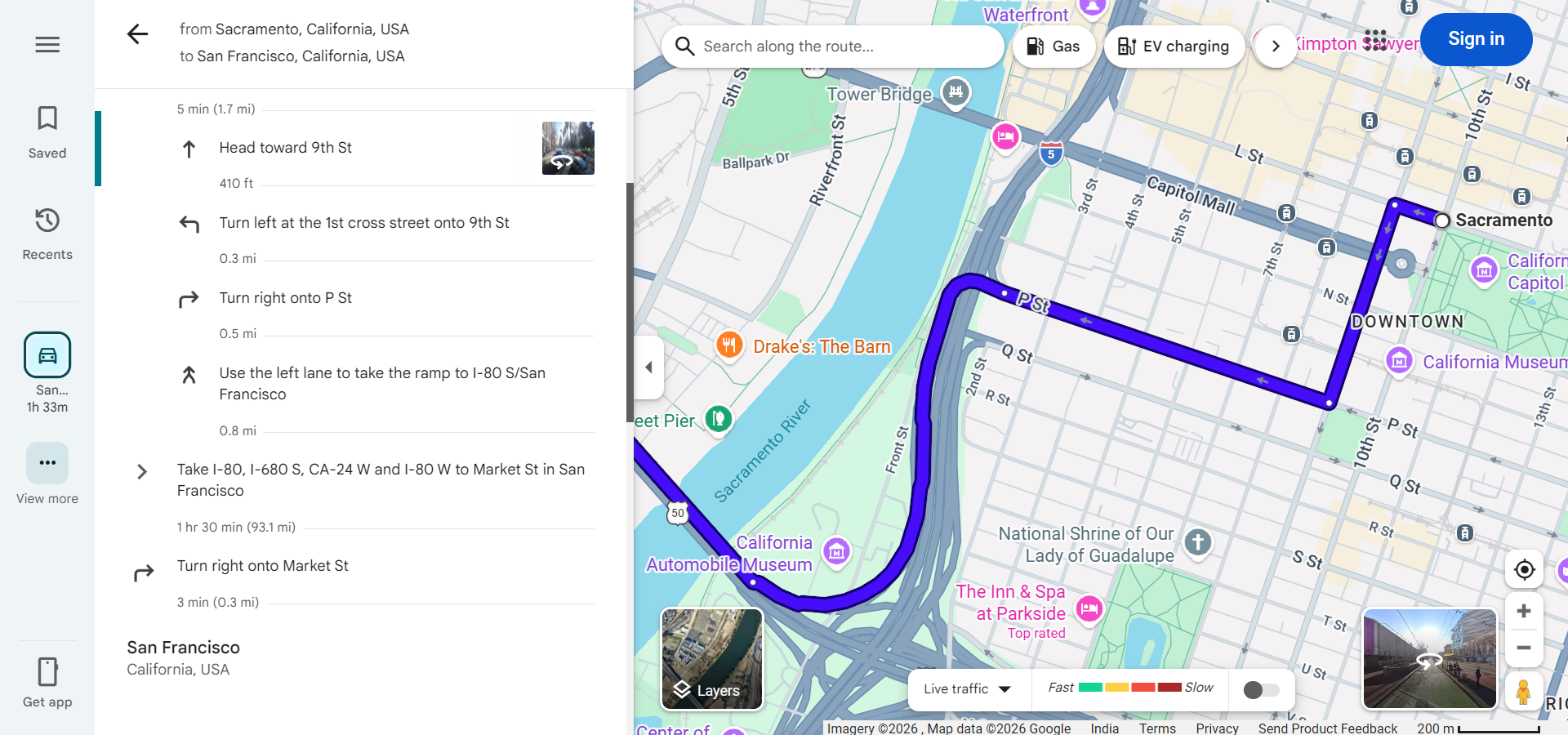
How to Calculate Mileage with Google Maps
There are several methods to calculate mileage using Google Maps, each suited to different needs:
Method 1: Directions Feature
- Open Google Maps and click or tap the Directions button.
- Enter your starting address and your destination address.
- Select the driving mode (car icon) to see driving-specific distance.
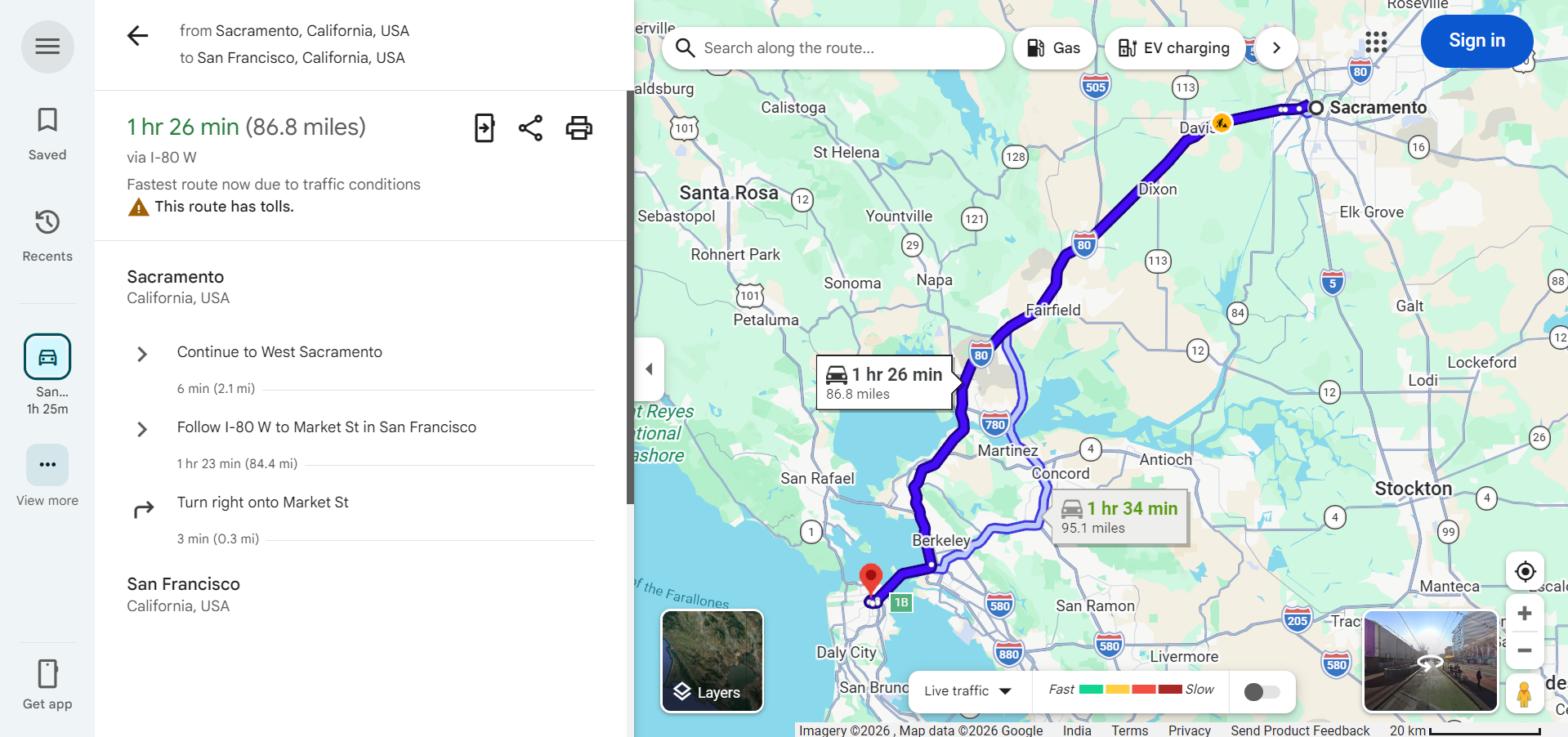
- Read the mileage displayed alongside each route option. The distance is shown in miles or kilometers depending on your settings.
- For multi-stop trips, add each stop as a waypoint to get the cumulative mileage across your entire journey.
Method 2: Measure Distance Tool
- Right-click on your starting point on the Google Maps map.
- Select "Measure distance" from the context menu.
- Click on each point along the route you want to measure.
- View the total distance displayed at the bottom of the screen in both miles and kilometers.
Mileage Tracking for Business and Tax Purposes
One of the most common uses of a mileage calculator is tracking business miles for tax deductions and reimbursement. Here is how Google Maps helps with business mileage:
- IRS Mileage Deductions — In the United States, business owners and employees can deduct business-related driving at the standard mileage rate set by the IRS. Google Maps provides the accurate distance data needed to support these deductions.
- Employer Reimbursement — Many employers reimburse employees for business travel based on the number of miles driven. Google Maps directions provide verifiable distance records that can be used for reimbursement claims.
- Delivery and Service Routes — Delivery drivers, sales representatives, and service technicians can use Google Maps to calculate daily mileage across multiple stops for accurate record-keeping.
- Fleet Management — Business fleet managers use Google Maps distance data to optimize routes, estimate fuel costs, and track total miles driven by company vehicles.
Converting Between Miles and Kilometers
Google Maps displays distance in either miles or kilometers based on your regional settings. To change the unit:
- On Desktop — Google Maps typically defaults to the unit system used in your country. You can manually convert using the formula: 1 mile = 1.609 kilometers.
- On Mobile — Go to Google Maps Settings > Distance units and select either miles or kilometers.
Mileage Calculator Tips and Best Practices
- Use Exact Addresses — Enter full street addresses rather than city names for the most accurate mileage calculations. The difference between a city center and a suburban address can add several miles.
- Log Trips Immediately — For business mileage tracking, calculate and record your mileage as soon as possible after each trip to maintain accurate records.
- Compare Route Distances — Google Maps often suggests multiple routes with different distances. Review all options to find the shortest or most convenient path.
- Account for Round Trips — Remember to double the one-way distance for round-trip calculations unless you are taking a different return route.
- Save Common Routes — For regularly traveled routes, save the addresses to quickly pull up mileage information without re-entering them each time.
- Use Timeline History — Google Maps Timeline (if enabled) can show your travel history with distances, which is useful for retroactive mileage tracking.
Google Maps Mileage vs. Odometer Readings
It is worth noting that Google Maps mileage calculations may differ slightly from your vehicle's odometer reading. This is because:
- Odometers measure every wheel rotation, including parking lot driving, detours, and wrong turns
- Google Maps calculates the theoretical distance of the planned route, not accounting for deviations
- Minor route changes during actual driving add small amounts of distance not reflected in the Google Maps calculation
- Elevation changes can affect the actual distance driven compared to the flat map distance
For most purposes, the difference is minimal (typically within 1-3%), and Google Maps distances are generally accepted for mileage reimbursement and tax purposes.
Frequently Asked Questions
- Is Google Maps mileage calculation accurate? — Yes, Google Maps mileage is highly accurate for planned routes, typically within 1-3% of actual odometer readings.
- Can I use Google Maps mileage for tax deductions? — Yes, Google Maps distances are widely accepted as supporting documentation for business mileage deductions. However, consult a tax professional for specific requirements.
- Does Google Maps calculate mileage for multiple stops? — Yes, you can add up to 9 intermediate stops and Google Maps will calculate the total mileage for the entire multi-stop route.
- Can I switch between miles and kilometers? — Yes, you can change the distance unit in Google Maps settings on your mobile device, or the desktop version typically follows your regional settings.