Google Maps Driving Distance
Google Maps driving distance is one of the most valuable features offered by Google's mapping platform, enabling millions of users to accurately calculate the distance between two or more locations by road. Whether you are planning a weekend getaway, estimating delivery routes for your business, or simply curious about how far apart two cities are, Google Maps Driving Distance provides precise measurements along with estimated travel times to help you plan effectively.
Unlike straight-line or "as the crow flies" distance calculators, Google Maps calculates the actual driving distance along roads and highways, accounting for the real route you would take. This makes it an essential tool for anyone who needs practical, road-based distance information rather than theoretical measurements.
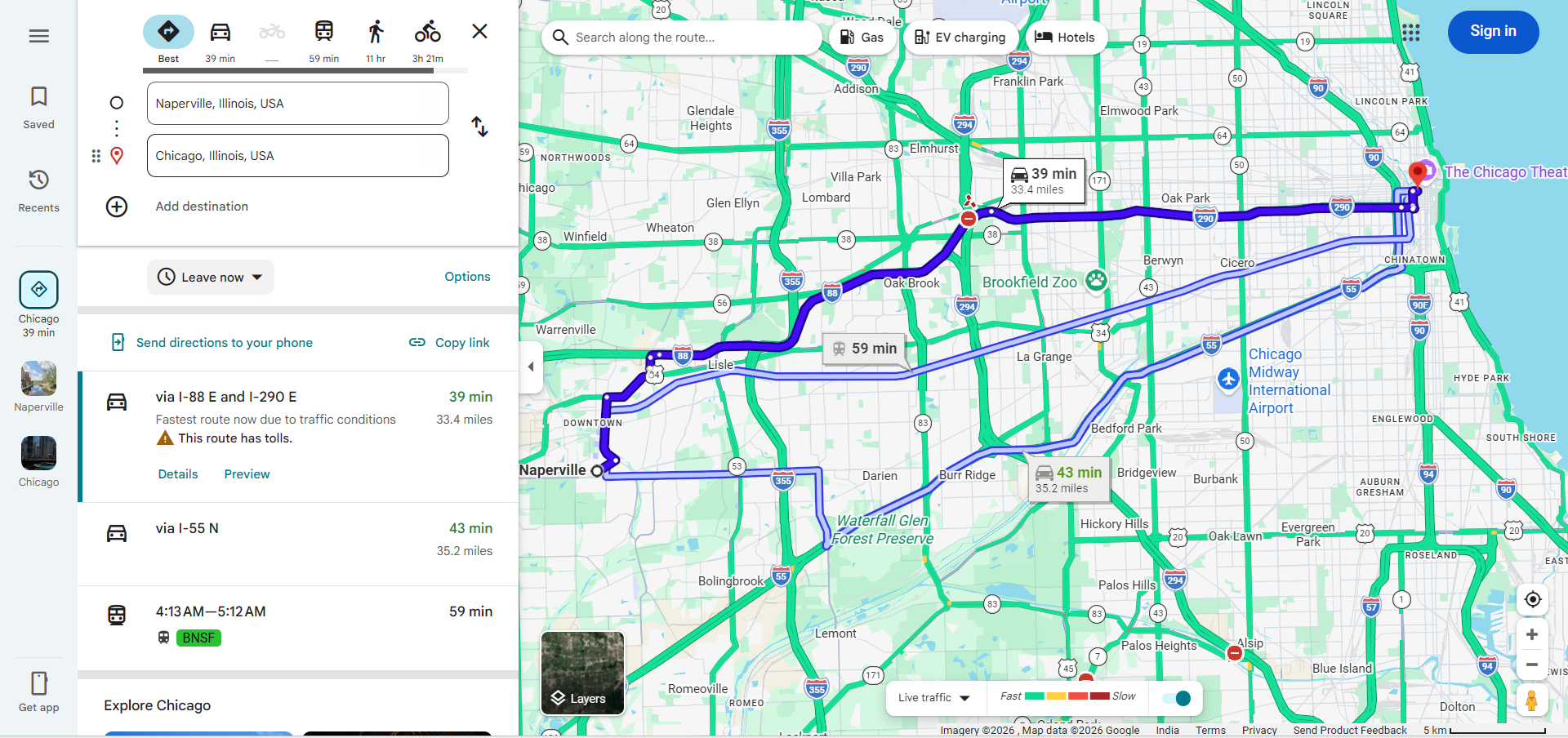
How to Calculate Driving Distance on Google Maps
Calculating driving distance on Google Maps is a simple and straightforward process that works on both desktop browsers and mobile devices. Here is how you can measure the distance between any two points:
Using the Directions Feature
- Open Google Maps on your browser or mobile app and click the Directions button.
- Enter your starting location in the first field. You can type an address, city name, or use your current location.
- Enter your destination in the second field. Google Maps will automatically calculate the driving route.
- View the distance displayed alongside the route. The total driving distance appears next to the estimated travel time for each route option.
- Compare alternative routes — Google Maps often suggests multiple route options, each with different distances and travel times.
Using the Measure Distance Tool
For more precise measurements, Google Maps also offers a "Measure distance" tool that lets you measure the distance between multiple points on the map:
- Right-click on your starting point on the map and select "Measure distance."
- Click on each subsequent point along the path you want to measure.
- The total distance will be displayed at the bottom of the screen in both miles and kilometers.
Understanding Google Maps Distance Calculations
When you request driving distance on Google Maps, the platform uses sophisticated algorithms that consider multiple factors to provide the most accurate measurements:
- Road Network Data — Google Maps uses its comprehensive database of roads, highways, and streets to calculate distances along actual driving routes rather than straight lines.
- Route Optimization — The platform considers the fastest and most efficient routes, factoring in road types, speed limits, and typical traffic patterns.
- Real-Time Conditions — While distance itself doesn't change with traffic, the recommended route (and therefore the distance) may vary based on current road conditions, closures, or construction.
- Multiple Route Options — Google Maps typically provides two to three route alternatives, allowing you to see how different paths affect both distance and travel time.
Practical Uses of Google Maps Driving Distance
The Google Maps driving distance feature serves a wide variety of practical purposes for individuals and businesses alike:
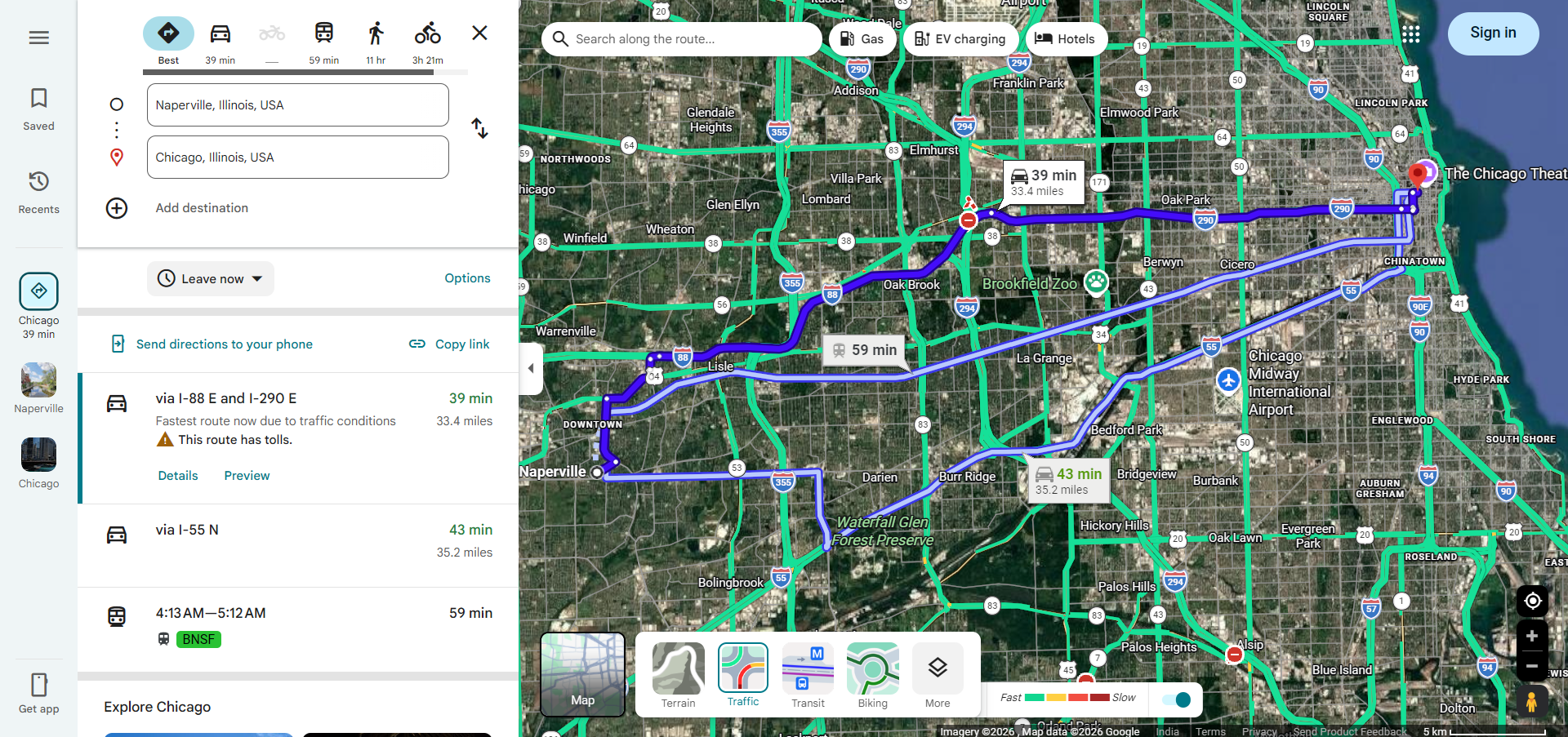
- Road Trip Planning — Calculate the total distance of your road trip to estimate fuel costs, plan rest stops, and determine how long the journey will take.
- Commute Analysis — Measure the driving distance between your home and workplace to compare potential routes and choose the most efficient daily commute.
- Business Logistics — Delivery companies and logistics providers use driving distance calculations to optimize delivery routes, estimate shipping costs, and improve fleet efficiency.
- Real Estate Decisions — Buyers and renters often use driving distance to evaluate how far a potential home is from their workplace, schools, hospitals, and other important locations.
- Travel Budgeting — Knowing the exact driving distance helps travelers budget for fuel costs, toll charges, and accommodation needs based on the length of their journey.
Tips for Accurate Distance Measurements
To get the most accurate driving distance readings from Google Maps, keep these tips in mind:
- Use Specific Addresses — Instead of typing just a city name, enter the exact street address for both your starting point and destination. This ensures the distance calculation accounts for the precise locations.
- Check Multiple Routes — Always review all suggested routes, as the shortest distance may not always be the fastest route due to road types and traffic conditions.
- Account for Detours — If you plan to make stops along the way, add them as waypoints to get a more accurate total distance for your entire trip.
- Verify Units — Make sure Google Maps is displaying distance in your preferred unit (miles or kilometers) by checking the settings.
- Consider Road Changes — New roads, construction zones, and seasonal road closures can affect distance calculations, so it's a good idea to check closer to your travel date.
Google Maps Driving Distance vs. Straight-Line Distance
It is important to understand the difference between driving distance and straight-line (geodesic) distance. Straight-line distance measures the shortest path between two points on Earth's surface, ignoring all roads, terrain, and obstacles. Driving distance, on the other hand, follows actual roads and highways, which means it is always longer than the straight-line distance.
For example, two cities might be 100 miles apart in a straight line, but the actual driving distance could be 130 miles or more depending on the road network. This is why Google Maps driving distance is far more useful for practical planning — it gives you the real-world distance you will actually travel.
Frequently Asked Questions
- Can I measure driving distance between multiple stops? — Yes, you can add up to 9 intermediate stops in Google Maps to calculate the total driving distance across all waypoints.
- Does Google Maps show distance in both miles and kilometers? — Yes, you can switch between miles and kilometers in the Google Maps settings based on your preference.
- Is the driving distance on Google Maps accurate? — Google Maps driving distance is highly accurate for well-mapped areas. However, distances may vary slightly from actual odometer readings due to road curvature, elevation changes, and minor route deviations.
- Can I calculate driving distance without an internet connection? — If you have downloaded offline maps for the area, you can get basic distance information. However, for the most accurate calculations, an internet connection is recommended.